ConvertCap vs CloudConvert
Same 1-second clip, same 10 MB cap, same image size. ConvertCap keeps the motion smooth and the gradient clean; CloudConvert stutters and fills it with a grid of squares.
Why ConvertCap instead of CloudConvert?
CloudConvert is a general-purpose converter. For video, its GIF export exposes frame size, frame rate and trim — no quality setting and no target size. You are the optimizer.
ConvertCap starts from the target size. It searches resolution, frame rate, palette and dithering for you. It spends the bytes where they buy the most visible quality, then stops.
The 10 MB test
Source: a 1-second hummingbird clip, 2764×1554, 30 fps, 31 frames. Both tools converted it with a 10 MB cap. Both outputs are 2764×1554.


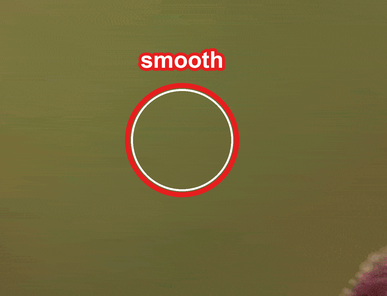
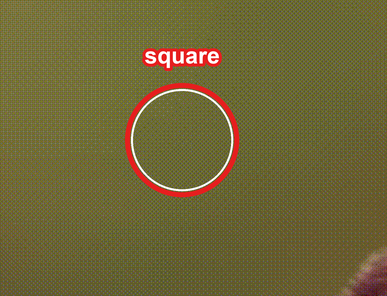
1:1 crops of the same region at native pixels.
What differs
1. Frame rate
CloudConvert kept 18 frames at 16 fps. ConvertCap kept 26 frames at 25 fps. The files are almost identical (9.72 MB vs 9.98 MB), so this is not a bandwidth miracle — it is a different answer to the same budget. At 16 fps the head turn looks like it is stuttering; at 25 fps it reads as motion.
2. Palette and dithering
CloudConvert mapped every pixel to a fixed RGB332 palette — 3 bits of red, 3 of green, 2 of blue — then used an 8×8 Bayer dither to fill in gradients that palette cannot hold. That is the crosshatch of little squares and the cool blue-grey speckle in the 1:1 crop. ConvertCap used an adaptive 256-color palette and no dither grid.
3. One click, not a settings lottery
You resize, convert, download, check the size, and start again when it misses — that is the loop. ConvertCap takes the one number you actually know — 10 MB — and solves for the rest. Type 10 MB, hit Start, done.
When CloudConvert makes sense
CloudConvert is fast, handles many formats, and is fine for a quick throwaway GIF where size and quality do not matter.
ConvertCap is focused: a tool for when the file has to fit a cap and still look good.
FAQ
- Is ConvertCap free?
- Yes. 3 files without an account, 5 per day with a free account.
- What formats can I export?
- GIF, WebP, AVIF, PNG, MP4, WebM, and MOV. You can also assemble PNG/WebP image sequences or trim clips in the same place.
- Does ConvertCap always avoid dithering?
- No. Dithering is sometimes the best way to spend a small budget. What matters is choosing it for the image and the cap, not applying one fixed grid to every frame. In this test the adaptive palette was enough.
Convert GIF, WebP, AVIF and MP4 to an exact size cap.
Free. No watermark. 5 conversions a day.
Convert a file